Initialize Project
C#
First, find the C# version SDK download section in the resource downloads, and select SDK_CSharp_x64 to download.
1 Create Project, Import SDK
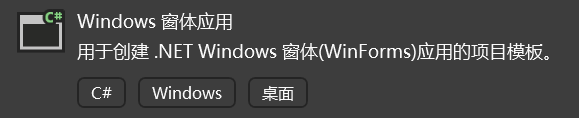
Select C# "Windows Forms App" to create.
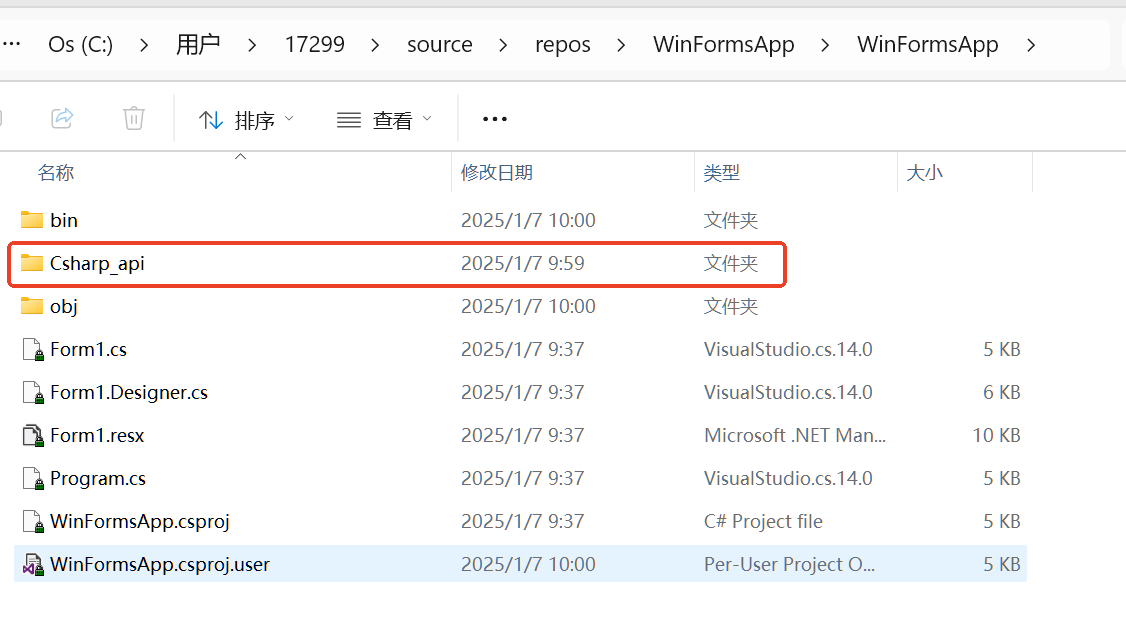
After creating the project, copy the SDK into the newly created project folder.
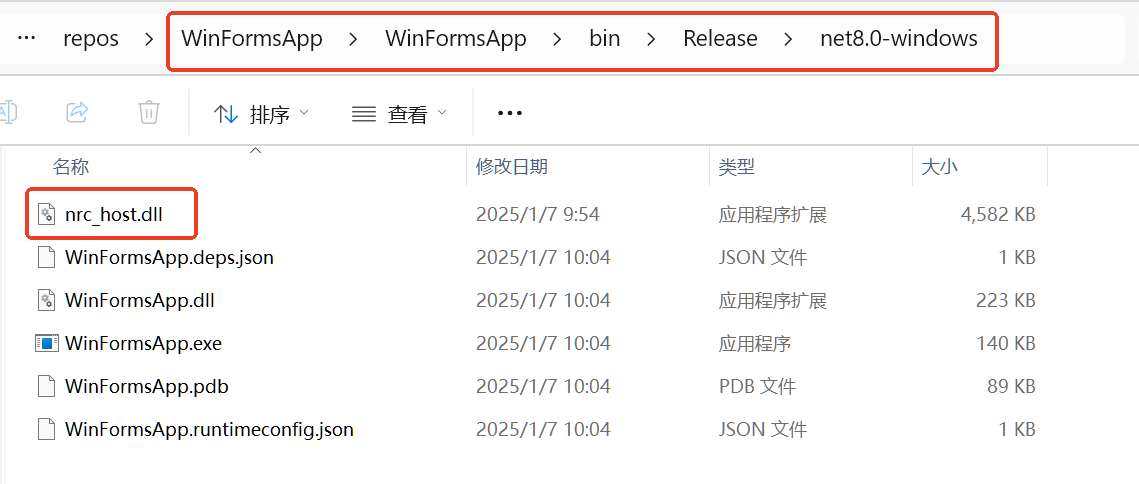
Then place the dynamic library under the build output path.
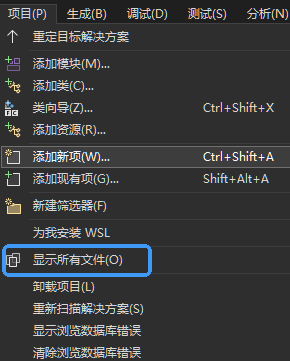
In the Visual Studio 2022 top menu bar, click Project > Show All Files to display the files we just copied.
After completing the above steps, the "Csharp_api" folder we just copied will appear in the "Solution Explorer" on the left side.
Right-click "Csharp_api" and select Include In Project to include it.
Once done, click Project > Show All Files again in the Visual Studio 2022 top menu bar to uncheck Show All Files.
Click the local Windows debugger. If you are using a Release version of the library, you need to switch from Debug to Release.

If there are no errors, it means we have successfully imported the SDK.
For more examples, see API Examples | Nabot Technology
- IDE used: Visual Studio 2022
- Compilation build tool: .NET 8.0