Quick Start
1. Environment Installation
1.1 System Requirements
The currently recommended development environment operating systems are:
The currently supported Qt compilation kits are:
- Ubuntu 20.04
- Desktop Qt 5.9.0 GCC 64 bit
- LYX (Teach Pendant embedded compilation kit)
Different Qt compilation kits need to be selected based on the target platform.
If you only need to run on Ubuntu 20.04, select the Desktop Qt 5.9.0 GCC 64 bit compilation kit. If you need to run on the embedded teach pendant box, select the LYX compilation kit.
We provide an image file packed with all development environments. You can also install it on any Ubuntu 20.04 machine by referring to section "1.3 Compilation Kit Installation".
Directly obtain a pre-configured virtual machine Click here to download a VirtualBox-based Ubuntu 20.04.1 virtual machine pre-configured with the development environment; Click here to download the VirtualBox software installer for Windows systems. For other system versions, please visit the VirtualBox official website to download. . Install VirtualBox software (note: the installation path must not contain Chinese characters) . Open the downloaded "Development Environment Virtual Machine" folder and install the virtual machine according to the instructions in the "README.txt" file; . After booting, log in with the account "nbt" and password "123".
1.2 Qt Download
We need to visit Qt's official website Qt Downloads and select qt-opensource-linux-x64-5.9.0.run to download.
It is recommended to copy this link https://download.qt.io/new_archive/qt/5.9/5.9.0/qt-opensource-linux-x64-5.9.0.run and use Thunder for faster download speeds.
After downloading, open the terminal in Ubuntu 20.04 and run:
sudo chmod a+x qt-opensource-linux-x64-5.9.0.run
sudo ./qt-opensource-linux-x64-5.9.0.run
When the Qt installer appears, keep choosing default options until you reach the step where you need to check the options as shown in the image:
After all steps are completed, Qt will be installed in the /opt directory.
To launch Qt, run:
/opt/Qt5.9.0/Tools/QtCreator/bin/qtcreator1.3 Compilation Kit Installation
Choose to install the following compilation toolchains based on the specific target platform:
1.3.1 Desktop Qt 5.9.0 GCC 64 bit Compilation Kit Installation
Install GCC, run:
sudo apt install gcc-multilib
sudo apt install g++-multilib
sudo apt install lib32z1
sudo apt install libgl1-mesa-dev
1.3.2 LYX Compilation Kit Installation
Extract gcc.tar.gz and qtenv.tar.gz to the /opt directory of the system:
sudo tar -zxvf gcc.tar.gz -C /opt
sudo tar -zxvf qtenv.tar.gz -C /opt
Extract tslib.tar.gz to the /usr/local directory of the system:
sudo tar -zxvf tslib.tar.gz -C /usr/localConfigure the 32-bit compilation environment:
sudo dpkg --add-architecture i386
sudo apt update
sudo apt install libc6-dev-i386
sudo apt install g++-multilib
sudo apt install libstdc++6:i386
Open Qt and add the LYX compilation kit. For detailed steps, see the attachment:
At this point, the two commonly used compilation kits are configured.
2. Remote Login to Teach Pendant
2.1 Confirm the Computer is Connected to the Teach Pendant
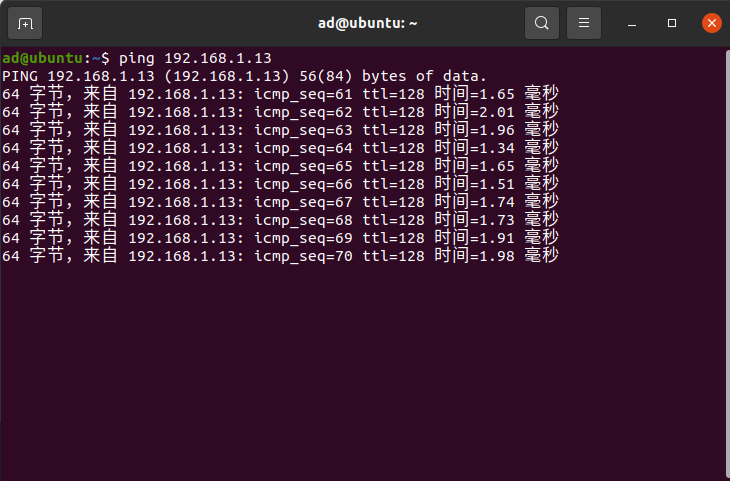
First, ensure that your computer has established communication with the controller. The computer's IP needs to be in the same network segment as the controller's IP. The factory default IP of the teach pendant is 192.168.1.245, so the network port of the computer connecting to the controller also needs to be set to the 1-network segment (for example, you can set 192.168.1.110). After configuration, open a new terminal in Ubuntu and enter:
ping 192.168.1.245If unsuccessful, check the network cable connection, the computer's IP, and the teach pendant's IP.
2.2 Log in to the Teach Pendant Using SSH
ssh root@192.168.1.245Then enter the password 1234 to gain remote control.
The teach pendant program runs in /userfs/app/. Use ./Qt-tp -qws to start the teach pendant program, and use killall -9 Qt-tp to terminate the teach pendant program.