ROS 1 Installation
This document describes the complete steps for installing ROS 1 Melodic on Ubuntu 18.04, as well as solutions for common errors.
1. Configure Software Sources
Ubuntu's default software sources are slow. It is recommended to switch to a domestic mirror (using Aliyun as an example).
Backup the Original sources.list
sudo cp /etc/apt/sources.list /etc/apt/sources.list_backupReplace with Aliyun Mirror Sources
sudo gedit /etc/apt/sources.listAdd the following lines at the beginning of the file:
deb http://mirrors.aliyun.com/ubuntu/ bionic main restricted universe multiverse
deb http://mirrors.aliyun.com/ubuntu/ bionic-security main restricted universe multiverse
deb http://mirrors.aliyun.com/ubuntu/ bionic-updates main restricted universe multiverse
deb http://mirrors.aliyun.com/ubuntu/ bionic-proposed main restricted universe multiverse
deb http://mirrors.aliyun.com/ubuntu/ bionic-backports main restricted universe multiverse
deb-src http://mirrors.aliyun.com/ubuntu/ bionic main restricted universe multiverse
deb-src http://mirrors.aliyun.com/ubuntu/ bionic-security main restricted universe multiverse
deb-src http://mirrors.aliyun.com/ubuntu/ bionic-updates main restricted universe multiverse
deb-src http://mirrors.aliyun.com/ubuntu/ bionic-proposed main restricted universe multiverse
deb-src http://mirrors.aliyun.com/ubuntu/ bionic-backports main restricted universe multiverse
Refresh Software List
sudo apt-get update
sudo apt-get upgrade
sudo apt-get install build-essential
2. Add ROS Software Sources
Official Source
sudo sh -c 'echo "deb http://packages.ros.org/ros/ubuntu $(lsb_release -sc) main" > /etc/apt/sources.list.d/ros-latest.list'Tsinghua Mirror (Recommended for Users in China)
sudo sh -c '. /etc/lsb-release && echo "deb http://mirrors.tuna.tsinghua.edu.cn/ros/ubuntu/ `lsb_release -cs` main" > /etc/apt/sources.list.d/ros-latest.list'3. Add Keys
sudo apt-key adv --keyserver 'hkp://keyserver.ubuntu.com:80' --recv-key C1CF6E31E6BADE8868B172B4F42ED6FBAB17C6544. Install ROS
sudo apt update
sudo apt install ros-melodic-desktop-full
5. Install and Initialize rosdep
sudo apt update
sudo apt install python-rosdep
sudo rosdep init
rosdep update
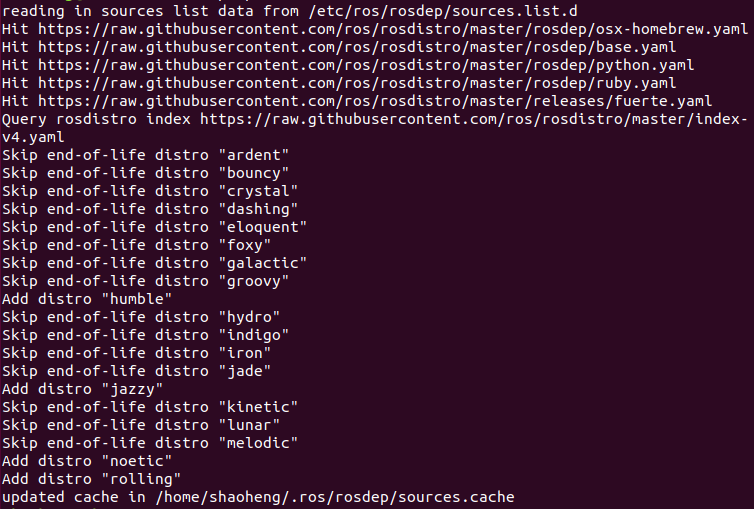
If everything goes smoothly, the output of rosdep initialization and update should look like this:

Fixing rosdep Initialization Failures
If initialization fails (due to limited access to GitHub servers), you can first try connecting via a mobile hotspot to run rosdep init. If that still doesn't work, follow the steps below to modify the configuration.
Fix sources_list.py
sudo gedit /usr/lib/python2.7/dist-packages/rosdep2/sources_list.pyIn the download_rosdep_data function, change url = "https://raw.githubusercontent.com/..." to url = "https://ghproxy.com/" + url.
Fix rosdistro/init.py
sudo gedit /usr/lib/python2.7/dist-packages/rosdistro/__init__.pyFind DEFAULT_INDEX_URL (around line 72) and change it to:
DEFAULT_INDEX_URL = 'https://ghproxy.com/https://raw.githubusercontent.com/ros/rosdistro/master/index-v4.yaml'Fix gbpdistro_support.py
sudo gedit /usr/lib/python2.7/dist-packages/rosdep2/gbpdistro_support.pyAdd the following at the beginning of the download_rosdep_data function (around line 36):
gbpdistro_url = "https://ghproxy.com/" + gbpdistro_urlFix rep3.py
sudo gedit /usr/lib/python2.7/dist-packages/rosdep2/rep3.pyAdd a proxy prefix around line 39.
Fix manifest_provider/github.py
sudo gedit /usr/lib/python2.7/dist-packages/rosdistro/manifest_provider/github.pyAdd a proxy prefix around lines 68 and 119.
Handle DNS Issues
If the errors still cannot be resolved, try modifying DNS:
sudo gedit /etc/resolv.confComment out the existing nameserver lines and add:
nameserver 8.8.8.8
nameserver 8.8.4.4
Save and exit, then run:
sudo apt-get updateThen run:
sudo rosdep initIf the error states default sources list file already exists, first delete the existing file:
sudo rm /etc/ros/rosdep/sources.list.d/20-default.listThen re-run sudo rosdep init.
6. Set Environment Variables
echo "source /opt/ros/melodic/setup.bash" >> ~/.bashrc
source ~/.bashrc
7. Install ROS Packages
sudo apt-get install ros-melodic-moveit
sudo apt-get install ros-melodic-joint-state-publisher
sudo apt-get install ros-melodic-robot-state-publisher
sudo apt install ros-melodic-gazebo-ros-pkgs
sudo apt-get install ros-melodic-gazebo-ros-control
sudo apt-get install ros-melodic-joint-trajectory-controller
sudo apt-get install ros-melodic-industrial-core
8. Testing
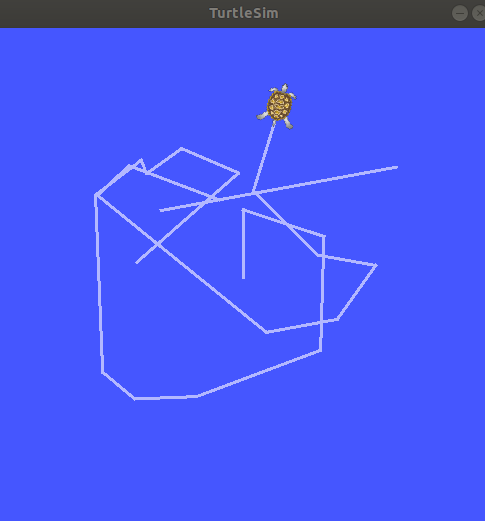
ROS includes some built-in small programs that can be used to verify whether the ROS environment is working properly.
Start roscore
roscoreStart the Turtle Simulator
Open a new terminal:
rosrun turtlesim turtlesim_nodeStart Keyboard Control
Open another terminal:
rosrun turtlesim turtle_teleop_keyHover the cursor over this terminal, then use the ↑, ↓, ←, → arrow keys to control the turtle's movement: