ROS 2 Installation
This article describes the complete steps for installing ROS 2 on Ubuntu 20.04 and above, using Ubuntu 22.04 + ROS 2 Humble as an example.
Preparation
Check Ubuntu Version
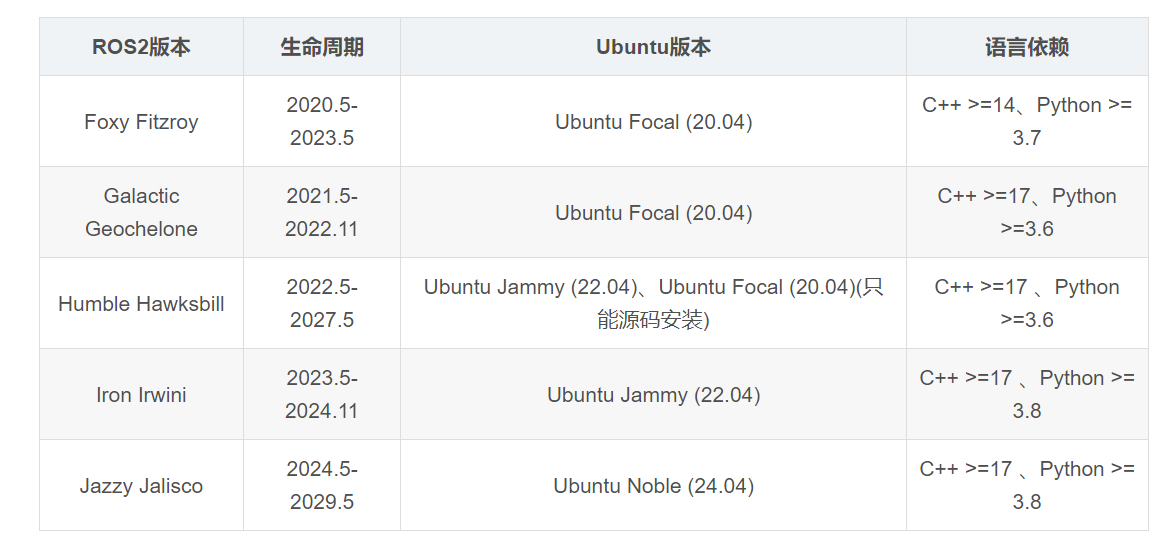
lsb_release -aUbuntu 22.04 corresponds to ROS 2 Humble. Versions after Foxy began supporting Ubuntu 22.04. For more detailed version mappings, refer to the official ROS documentation.
Method 1: Manual Installation
1. Base Environment Configuration
Set Locale
Ensure the system supports UTF-8 encoding:
sudo apt update && sudo apt install locales
sudo locale-gen en_US en_US.UTF-8
sudo update-locale LC_ALL=en_US.UTF-8 LANG=en_US.UTF-8
export LANG=en_US.UTF-8
Configure Software Sources
sudo apt install software-properties-common
sudo add-apt-repository universe
Add ROS 2 GPG Key
sudo apt update && sudo apt install curl gnupg2 -y
sudo curl -sSL https://gitee.com/tyx6/rosdistro/raw/master/ros.key -o /usr/share/keyrings/ros-archive-keyring.gpg
Add Software Repository
Official source:
echo "deb [arch=$(dpkg --print-architecture) signed-by=/usr/share/keyrings/ros-archive-keyring.gpg] http://packages.ros.org/ros2/ubuntu $(. /etc/os-release && echo $UBUNTU_CODENAME) main" | sudo tee /etc/apt/sources.list.d/ros2.list > /dev/nullTsinghua mirror (recommended for users in China):
echo "deb [arch=$(dpkg --print-architecture) signed-by=/usr/share/keyrings/ros-archive-keyring.gpg] https://mirrors.tuna.tsinghua.edu.cn/ros2/ubuntu $(. /etc/os-release && echo $UBUNTU_CODENAME) main" | sudo tee /etc/apt/sources.list.d/ros2.list > /dev/null2. Install ROS 2
Update the System
sudo apt update
sudo apt upgrade
Install ROS 2
sudo apt install ros-humble-desktopConfigure Environment Variables
echo "source /opt/ros/humble/setup.bash" >> ~/.bashrc
source ~/.bashrc
3. Verify Installation
Test Communication
In Terminal 1, start the publisher:
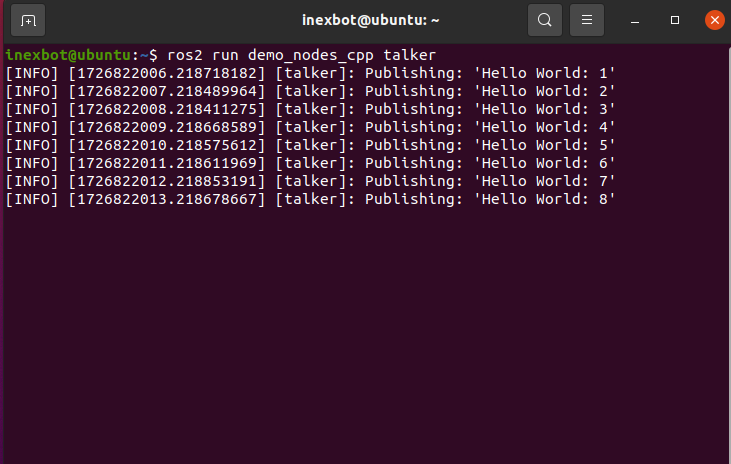
ros2 run demo_nodes_cpp talkerIf working correctly, the following output will be displayed:
In Terminal 2, start the subscriber:
ros2 run demo_nodes_py listenerIf working correctly, the following output will be displayed:
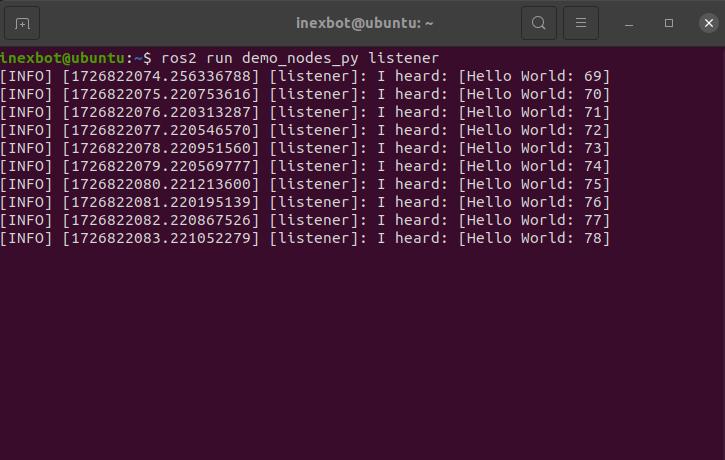
If both terminals display the Hello World string, communication is working correctly.
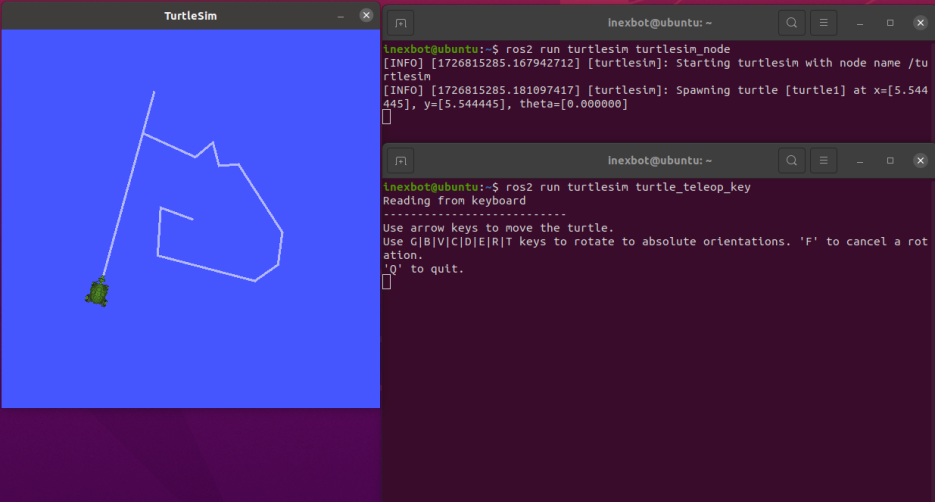
Test the Turtlesim Simulator
In Terminal 1, start the turtlesim simulator:
ros2 run turtlesim turtlesim_nodeIn Terminal 2, start the keyboard control:
ros2 run turtlesim turtle_teleop_keyThe result is shown below:
4. Configure rosdep
rosdep is the dependency management tool for ROS. It is needed to install system dependencies when compiling some packages from source.
rosdep accesses GitHub servers, which may be slow in China. It is recommended to replace the addresses with domestic mirrors.
Install rosdep
sudo apt install python3-rosdepAutomatic Configuration (Recommended)
Download and run the one-click fix script:
wget https://gitee.com/tyx6/mytools/raw/main/ros/Mrosdep.py
sudo python3 Mrosdep.py
Note: This script is located in the rosdistro directory. If the script fails, you can manually modify the configuration as described below.
Manual Configuration
You need to manually modify the following 4 files, replacing https://raw.githubusercontent.com/... with https://gitee.com/...:
sudo gedit /usr/lib/python3/dist-packages/rosdep2/sources_list.py    # around line 64
sudo gedit /usr/lib/python3/dist-packages/rosdistro/__init__.py       # around line 68
sudo gedit /usr/lib/python3/dist-packages/rosdep2/gbpdistro_support.py # around line 34
sudo gedit /usr/lib/python3/dist-packages/rosdep2/rep3.py               # around line 36
Complete Initialization
sudo rosdep init
rosdep update
Note: If configuration keeps failing, try Method 2 for one-click setup.
Method 2: One-Click Installation
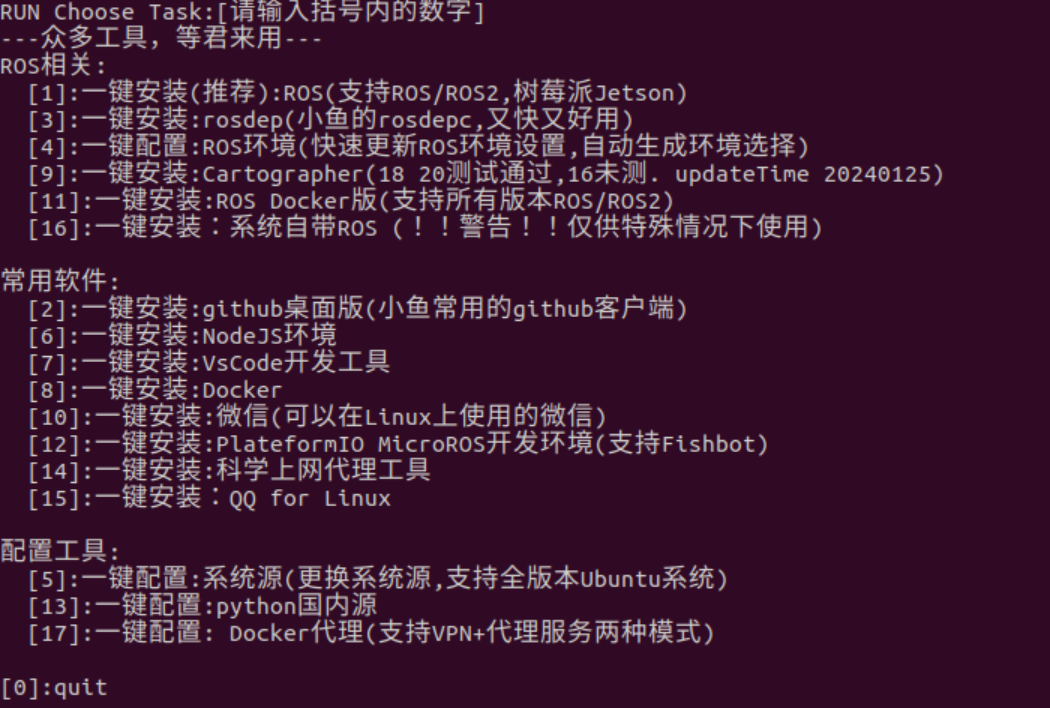
Use the FishROS one-click installation script, which automatically completes ROS 2 installation, rosdep configuration, and environment variable setup:
wget http://fishros.com/install -O fishros && . fishros