🤖 AI assistants / automation: start with AI Entry Page · Agent Development Guide · Pre-generation Checklist (zh); index: /llms.txt; SKILL: SKILL.md
Ubuntu 22.04 Installation
This article describes the complete steps for installing an Ubuntu 22.04 virtual machine using VMware. The Ubuntu image is downloaded from the Tsinghua University Open Source Mirror Site, so you can skip the manual repository replacement step during installation.
Download the Image
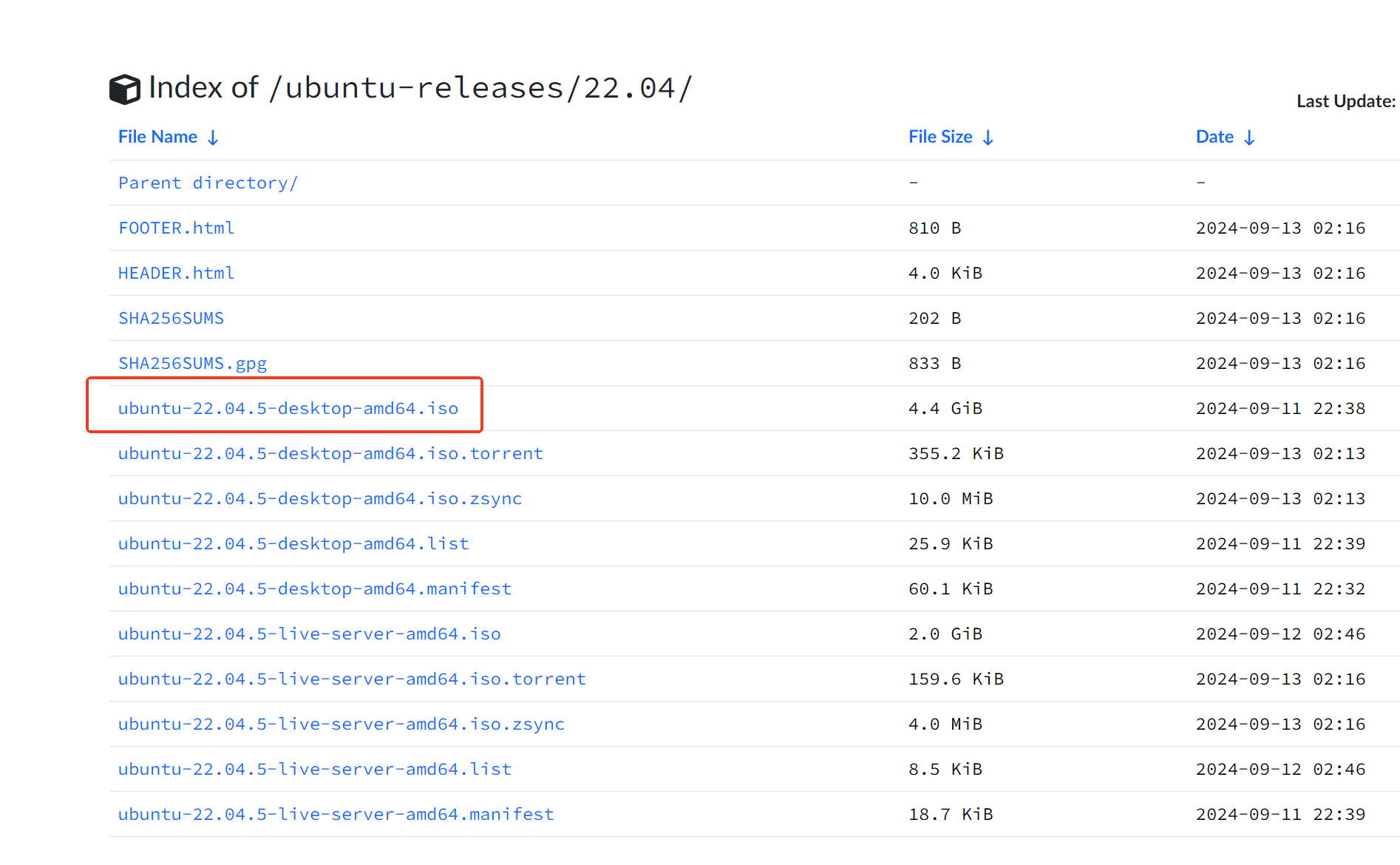
Download the Ubuntu 22.04 LTS image from the Tsinghua University Open Source Mirror Site:
https://mirrors.tuna.tsinghua.edu.cn/ubuntu-releases/22.04/
Create a Virtual Machine
VMware Configuration Steps
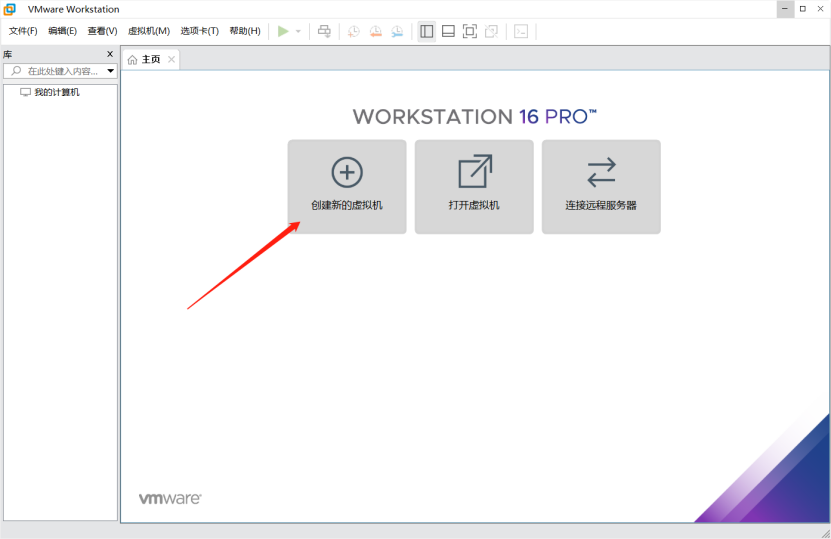
- Open VMware, click Create a New Virtual Machine to begin configuring the virtual machine environment.
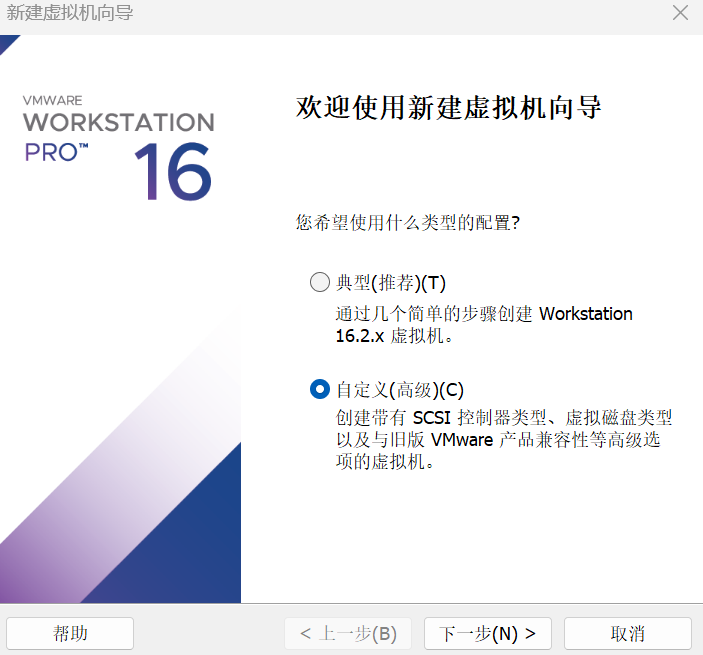
- Select Custom (Advanced), then click Next.
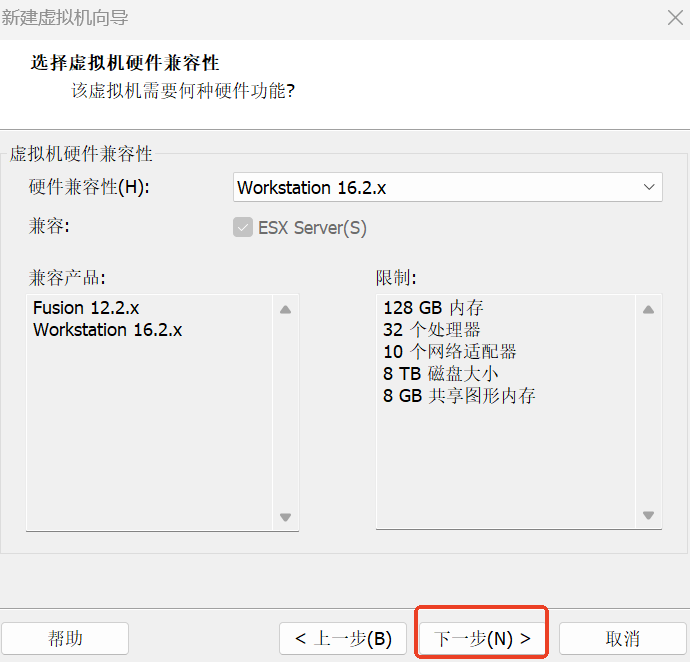
- Select hardware compatibility based on your VMware version, then click Next.
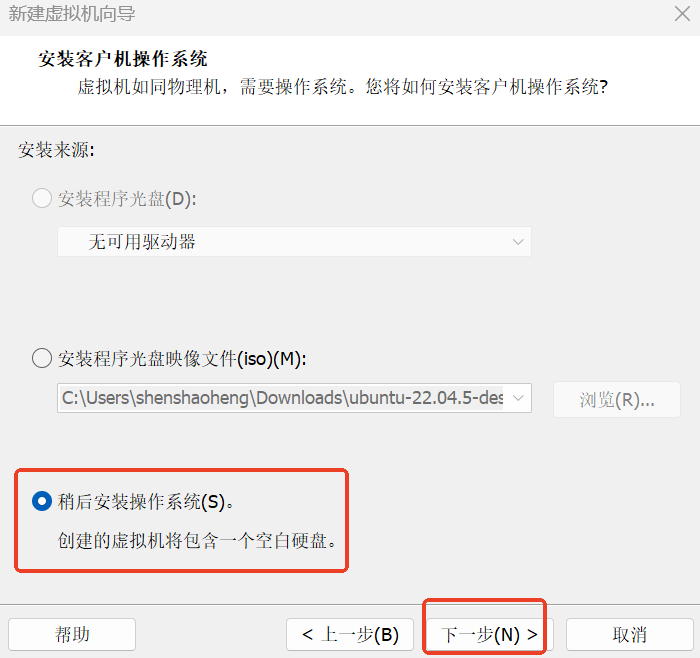
- Select I will install the operating system later, then click Next.
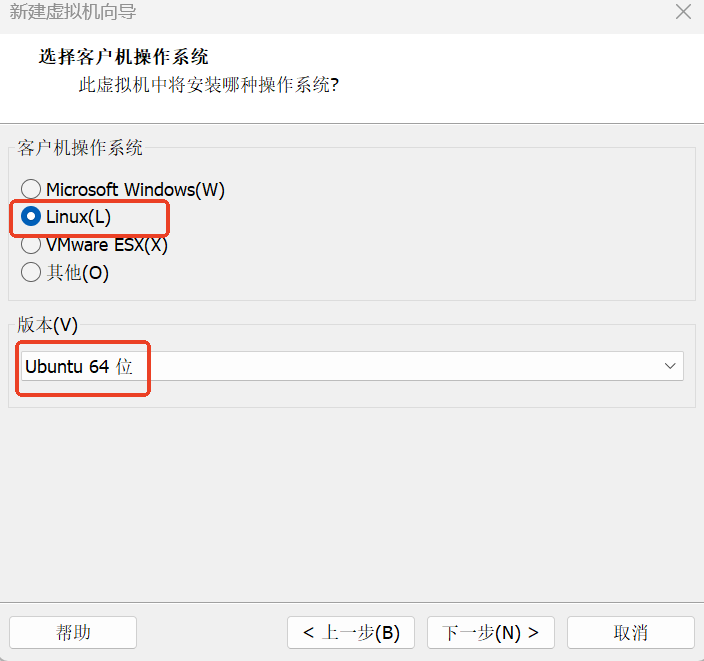
- Select Linux, and choose Ubuntu 64-bit as the version, then click Next.
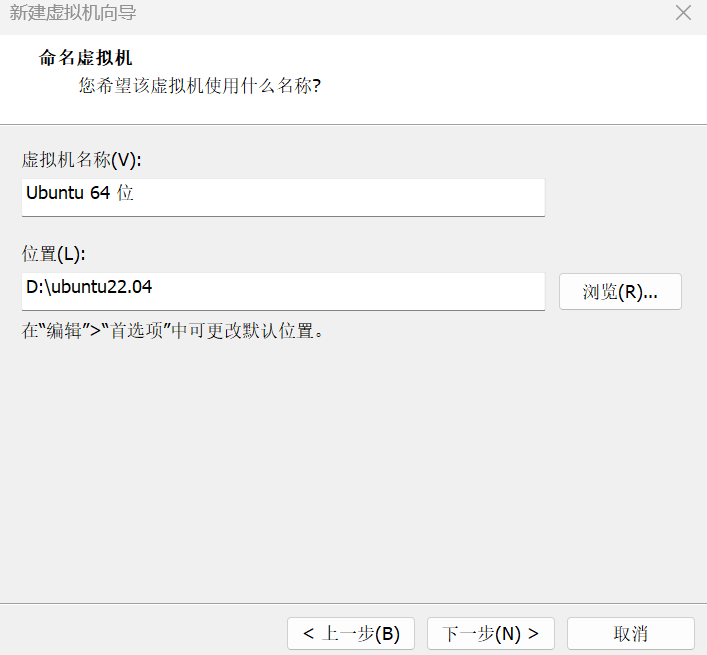
- Set the virtual machine name and installation location (it is recommended not to place it on the C drive), then click Next.
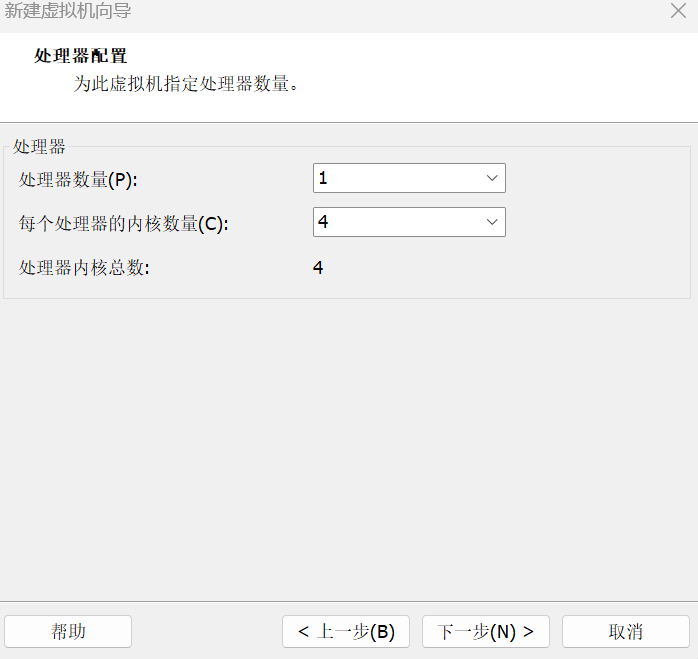
- Set the number of processors and cores, then click Next.
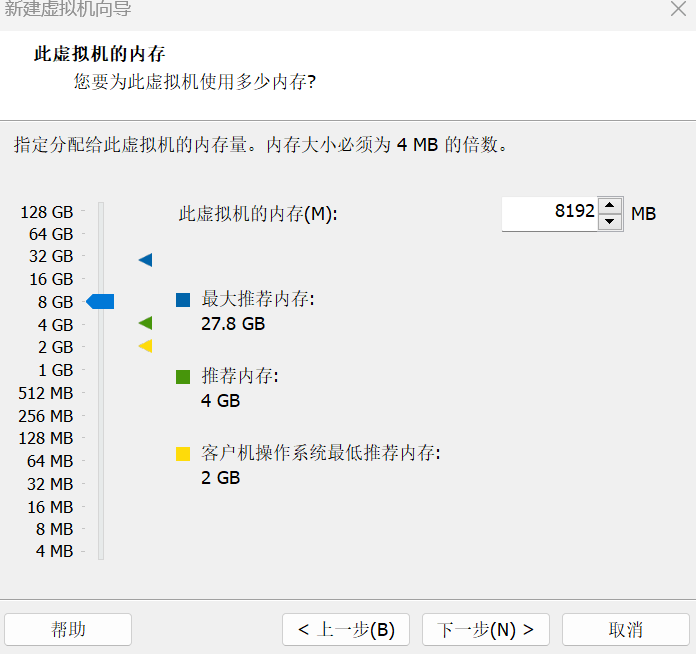
- Configure the memory (recommended 4GB or above), then click Next.
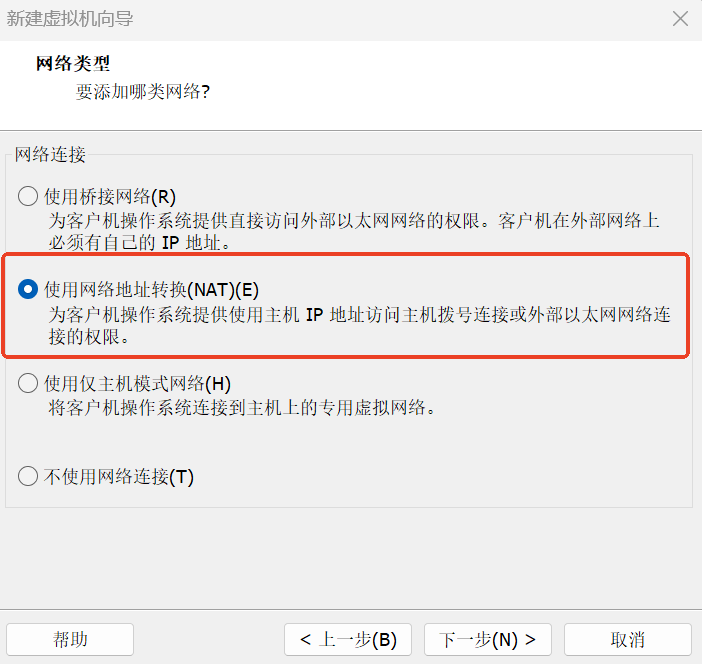
- Select Use network address translation (NAT), then click Next.
- Keep the default recommended configuration, then click Next.
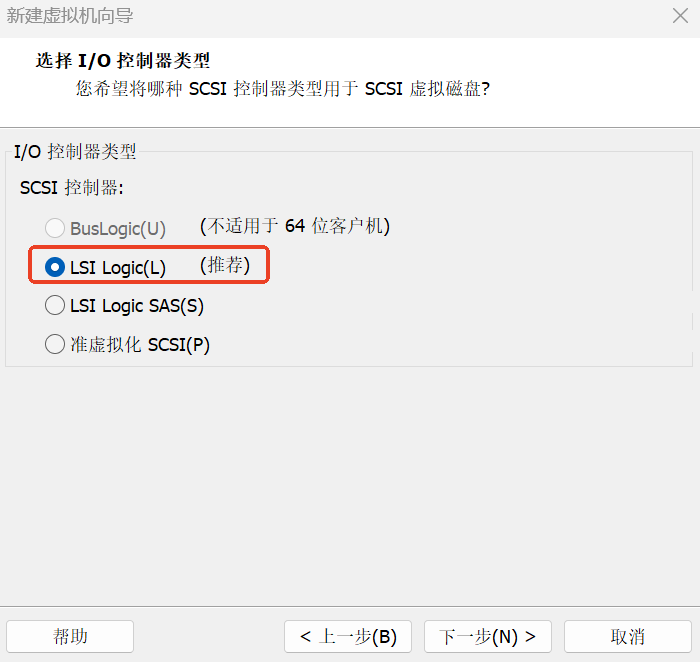
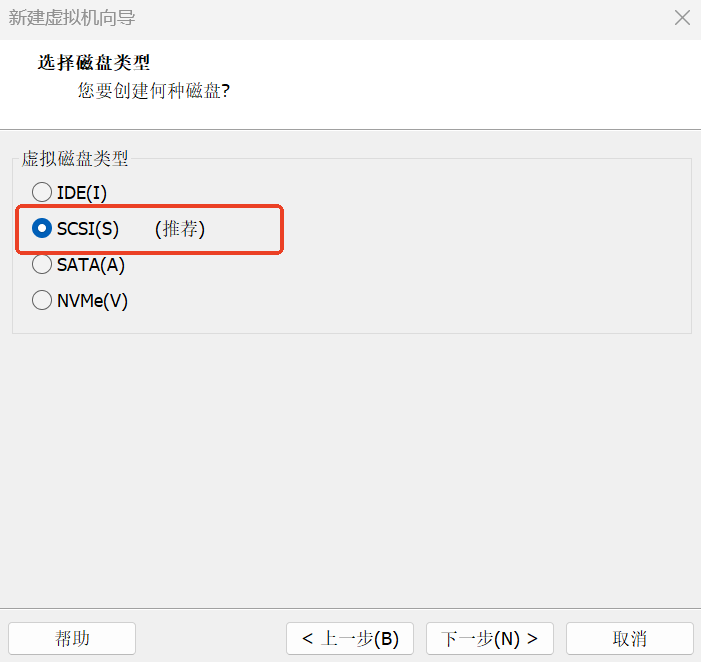
- Select SCSI (S), then click Next.
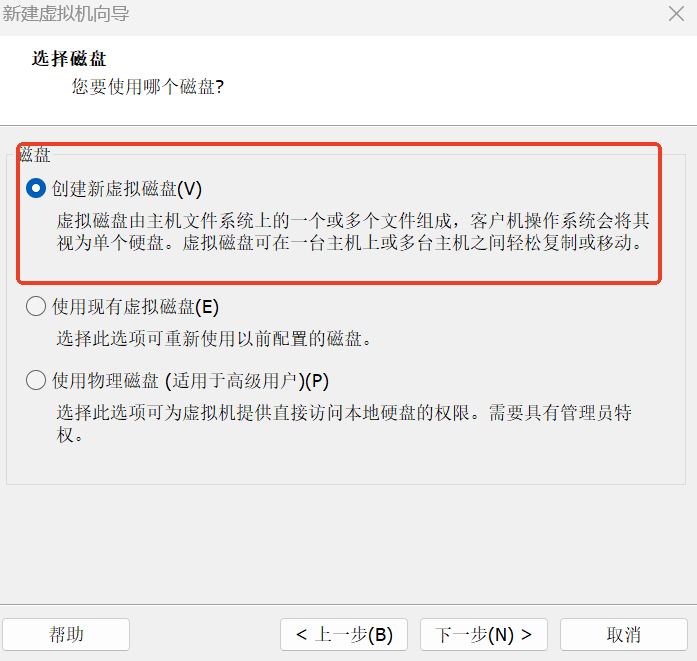
- Select Create a new virtual disk, then click Next.
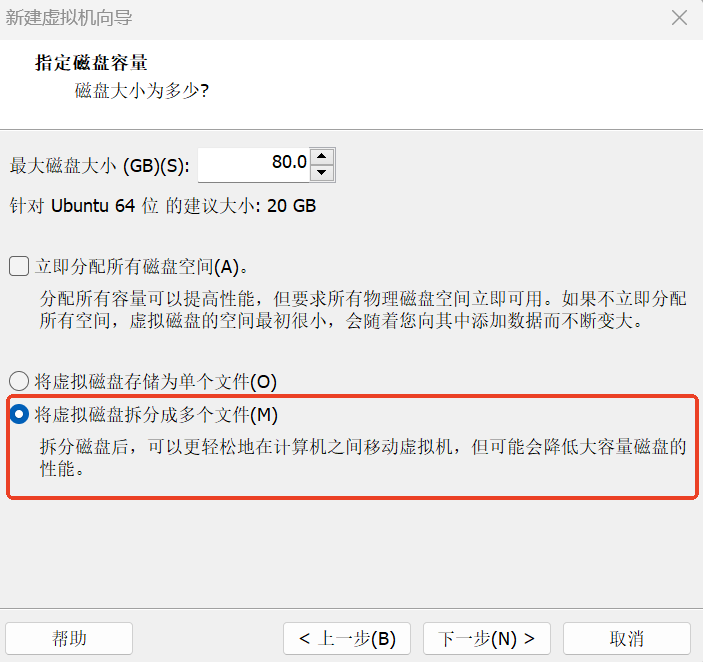
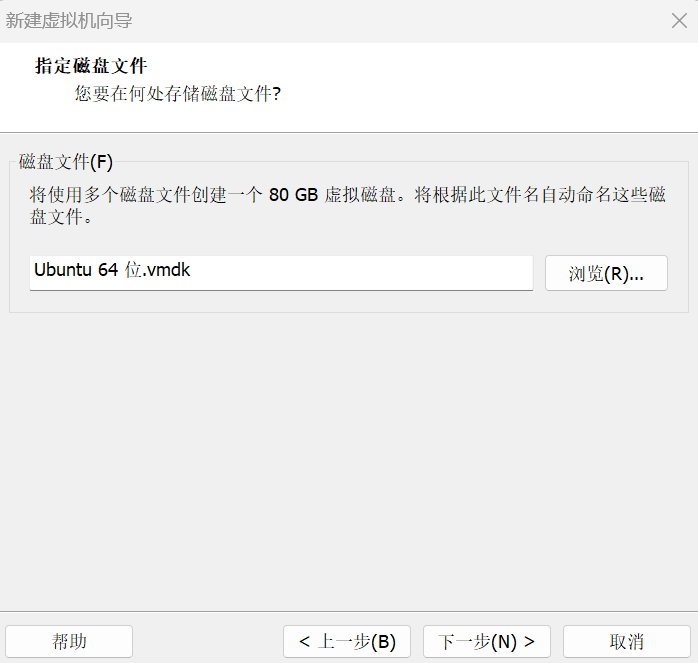
- Allocate disk capacity (recommended 80GB, adjustable as needed), select Split virtual disk into multiple files, then click Next.
- Click Next.
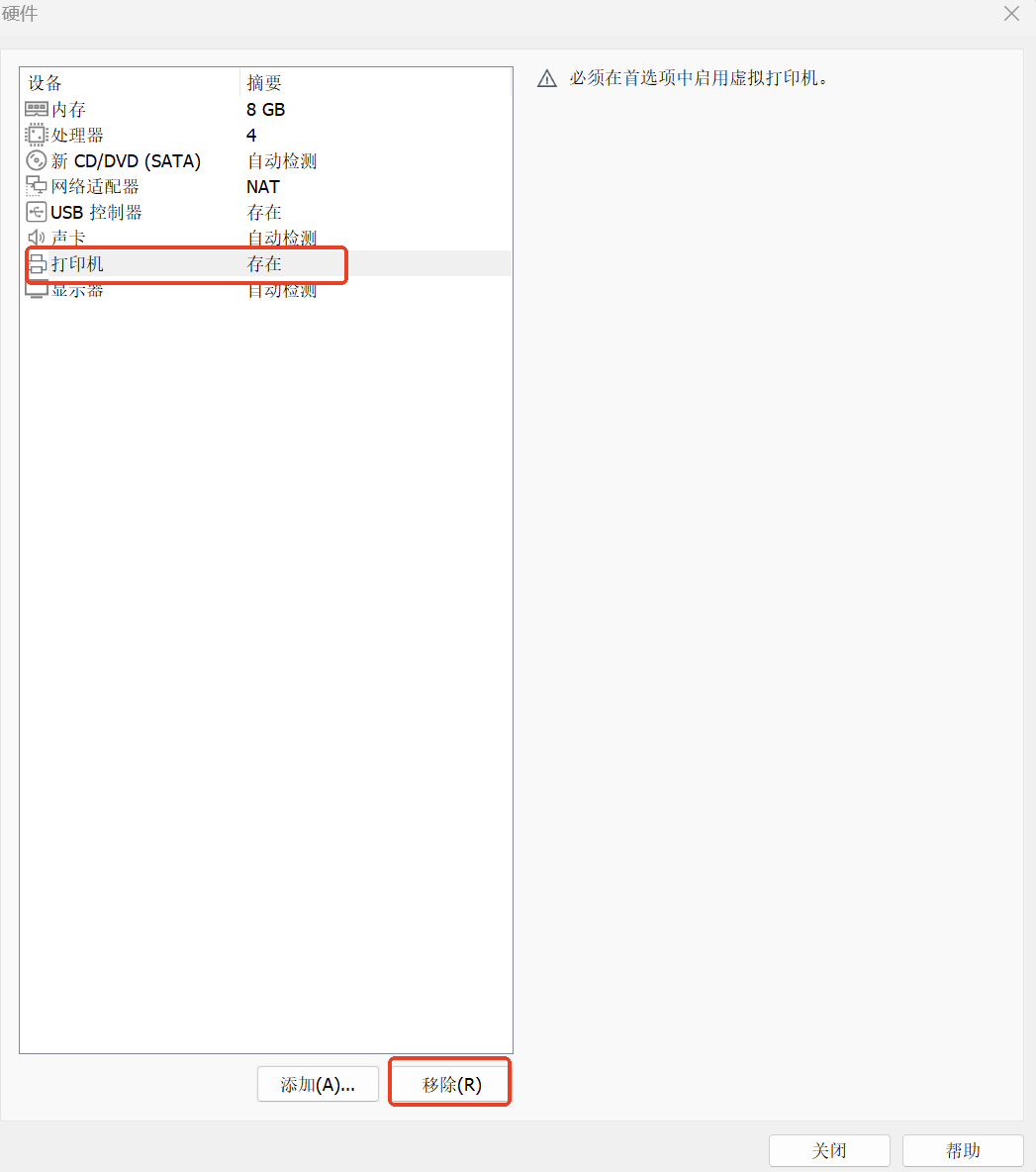
- Click Customize Hardware, and remove the printer (to save resources).
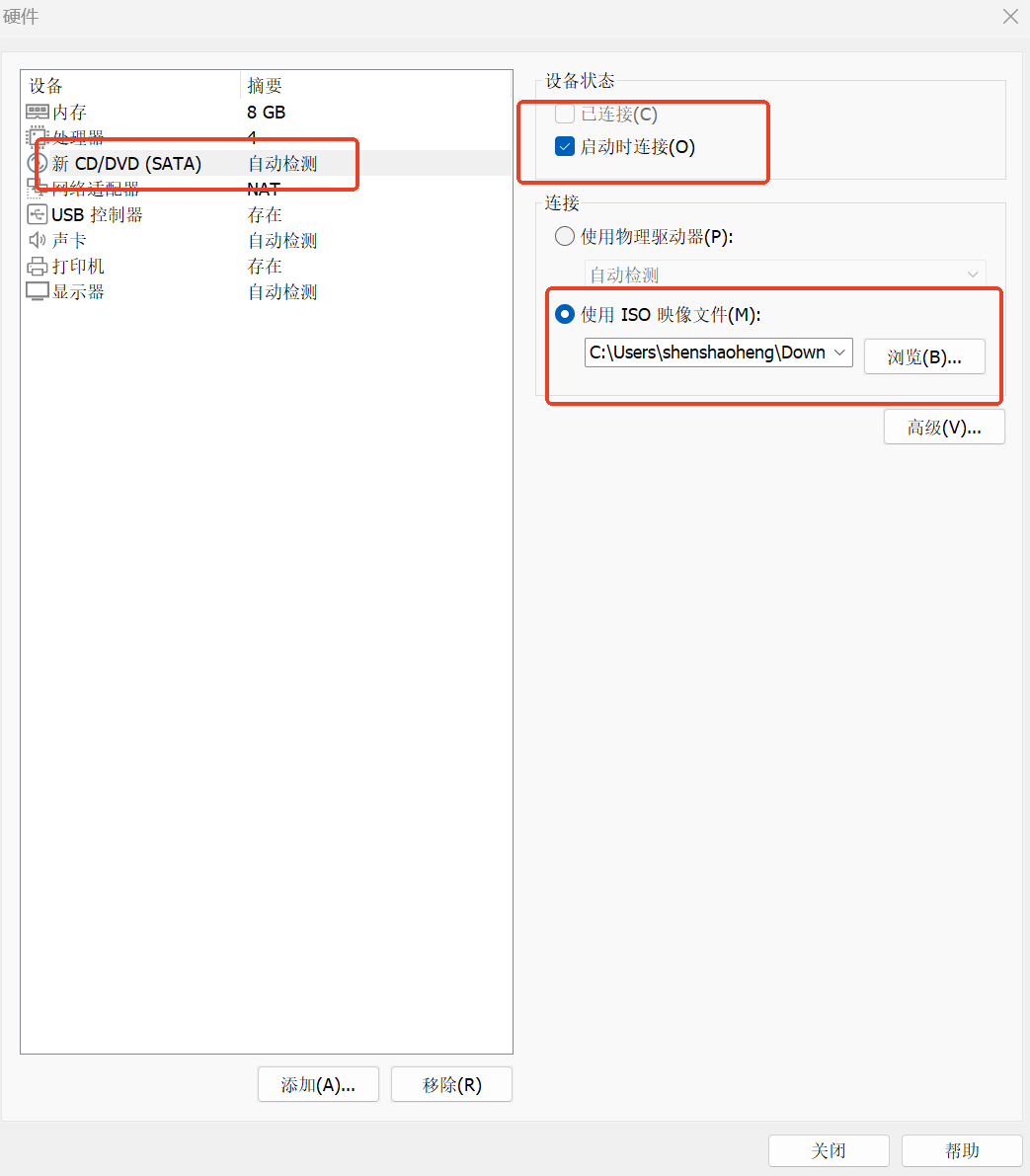
- Select New CD/DVD (SATA), click Use ISO image file, browse and select the downloaded Ubuntu image file, then click Close.
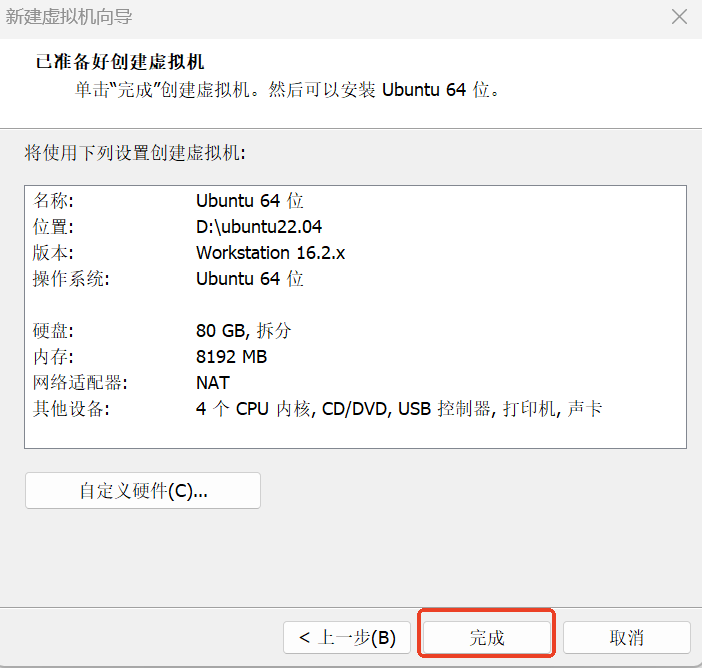
- Click Finish, then click Power on this virtual machine.
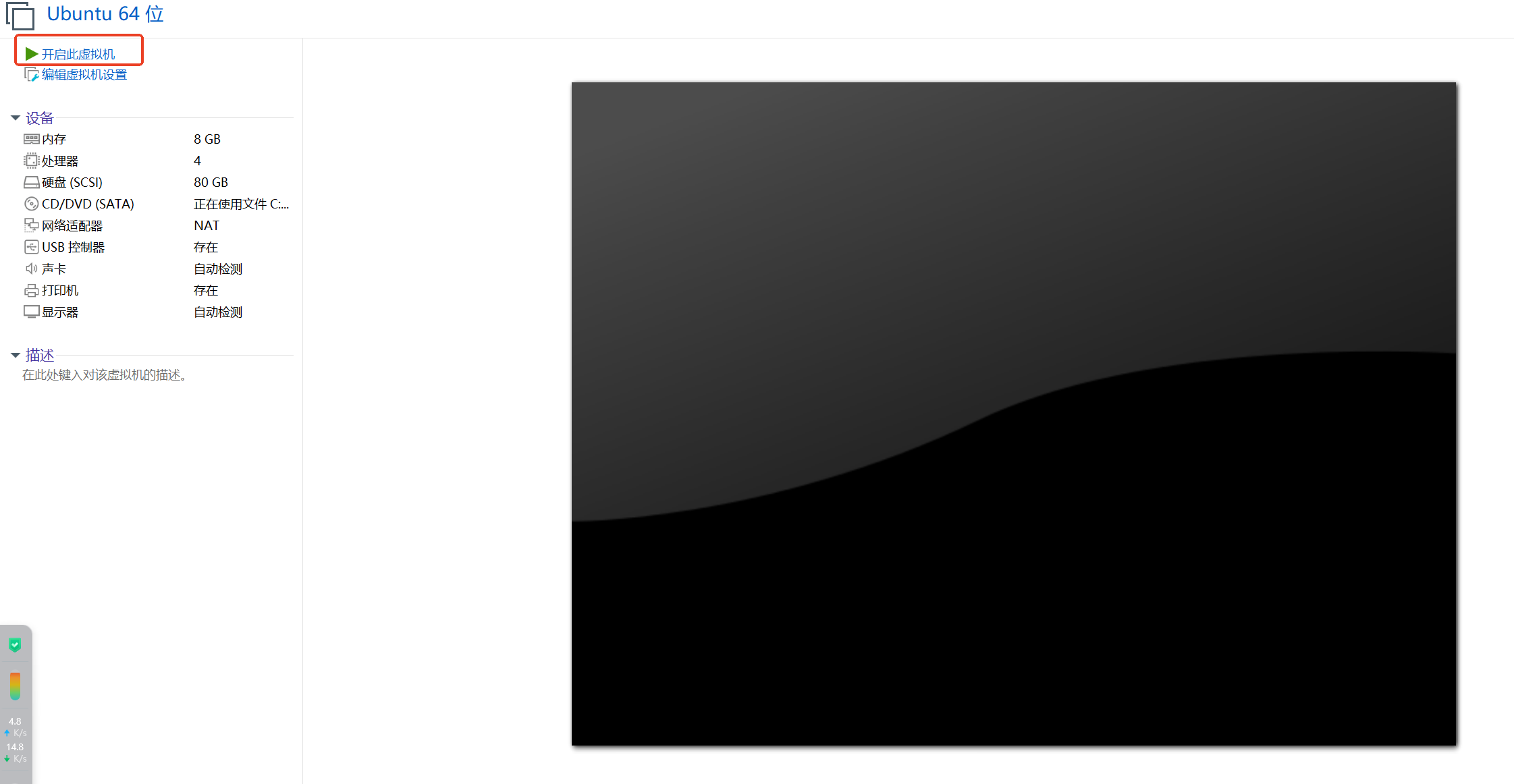
Install Ubuntu 22.04
Start the Virtual Machine
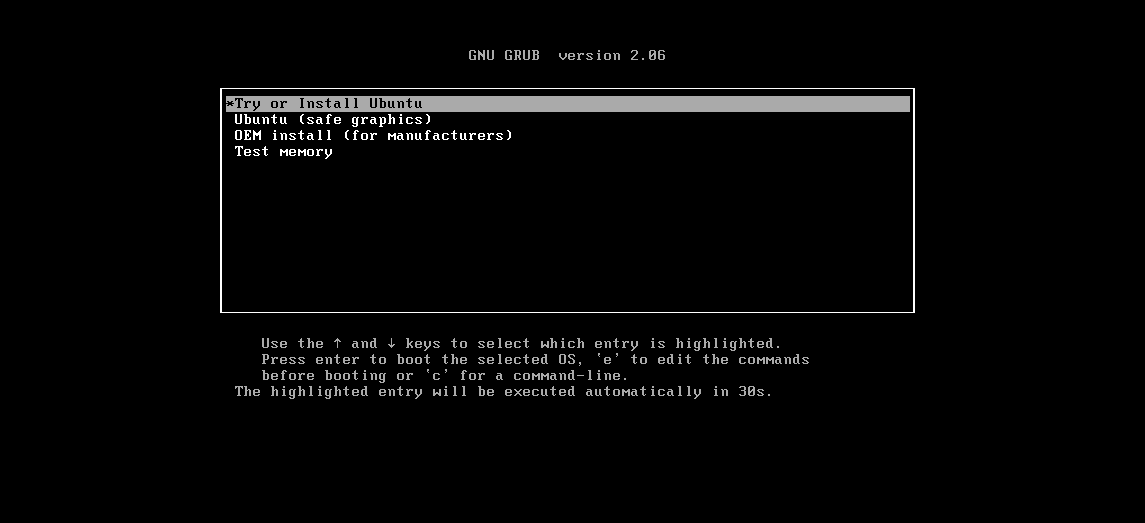
- Select Try or install ubuntu, then press Enter.
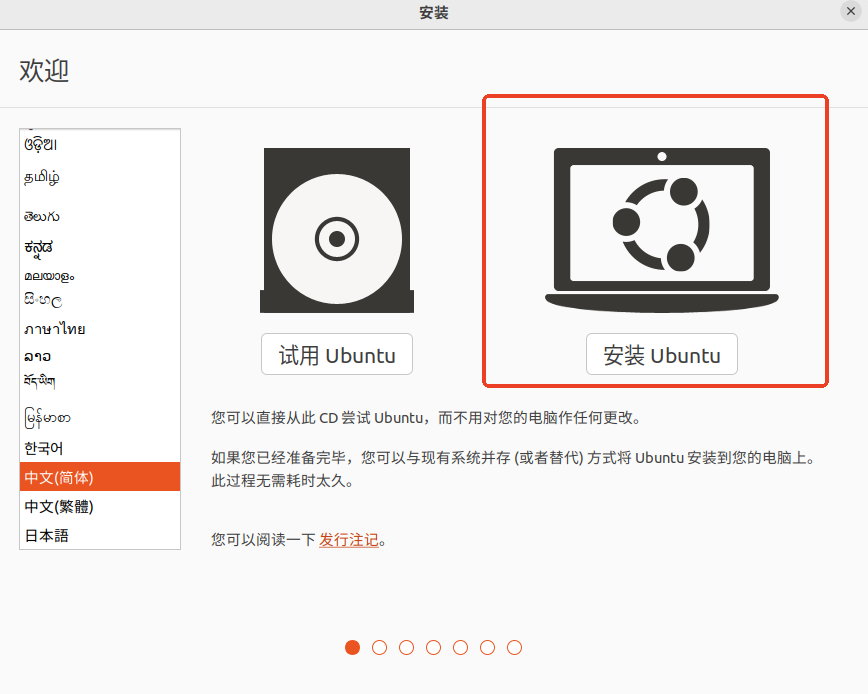
- From the left dropdown, select Chinese (Simplified), then click Install Ubuntu.
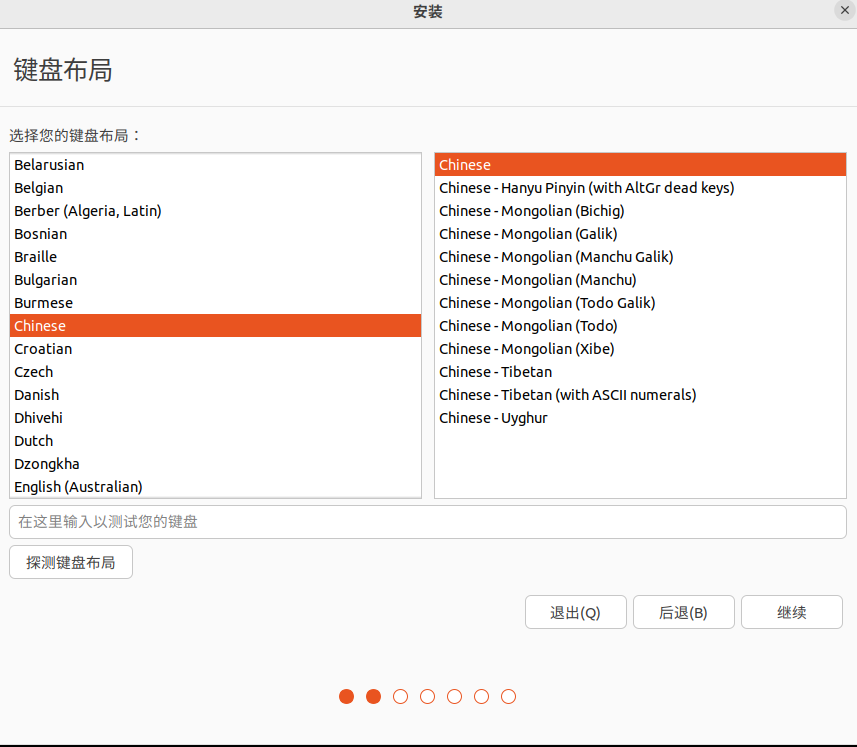
Configure Installation Options
- Click Continue.
- Select Normal installation or Minimal installation, then click Continue.
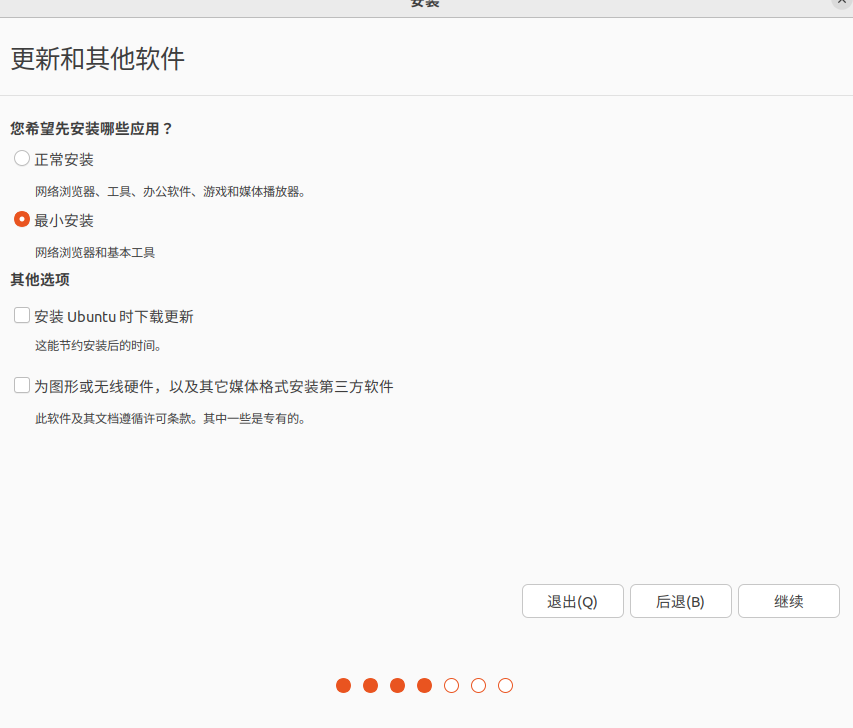
- Select Erase disk and install Ubuntu, then click Install Now.
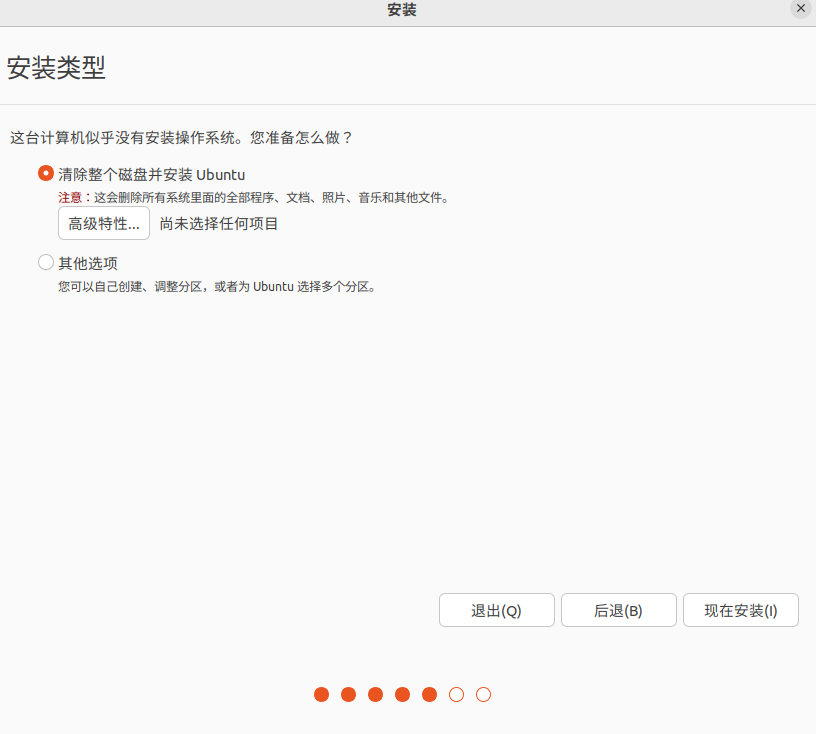
- Click Continue.
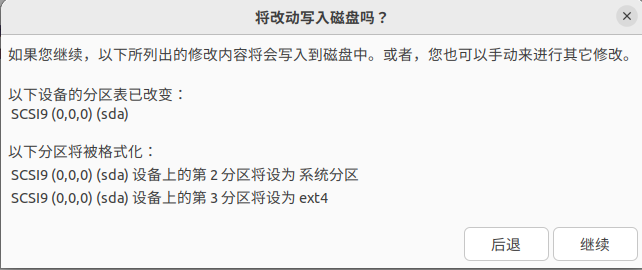
- Click Continue.
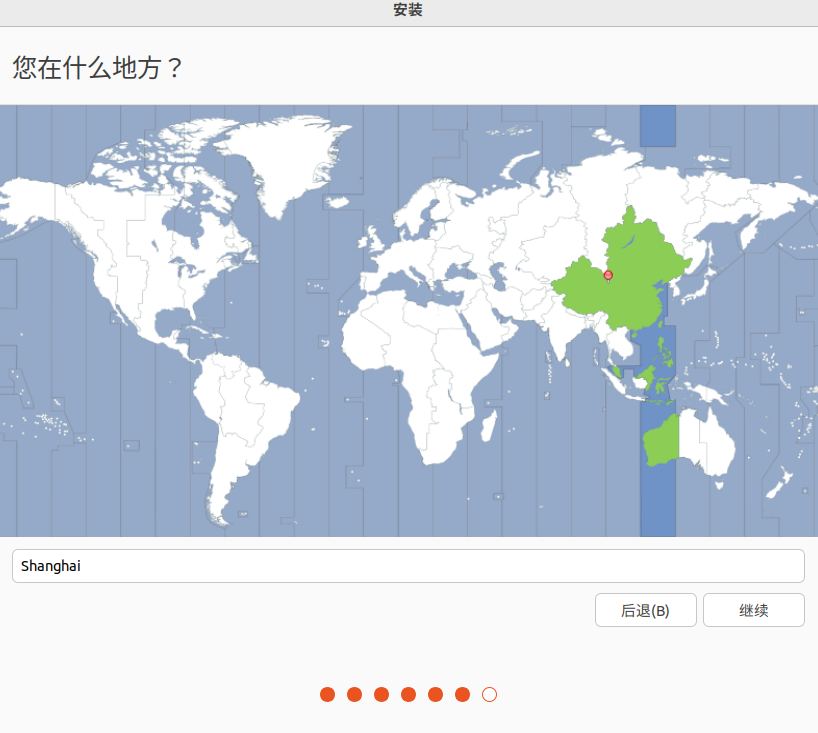
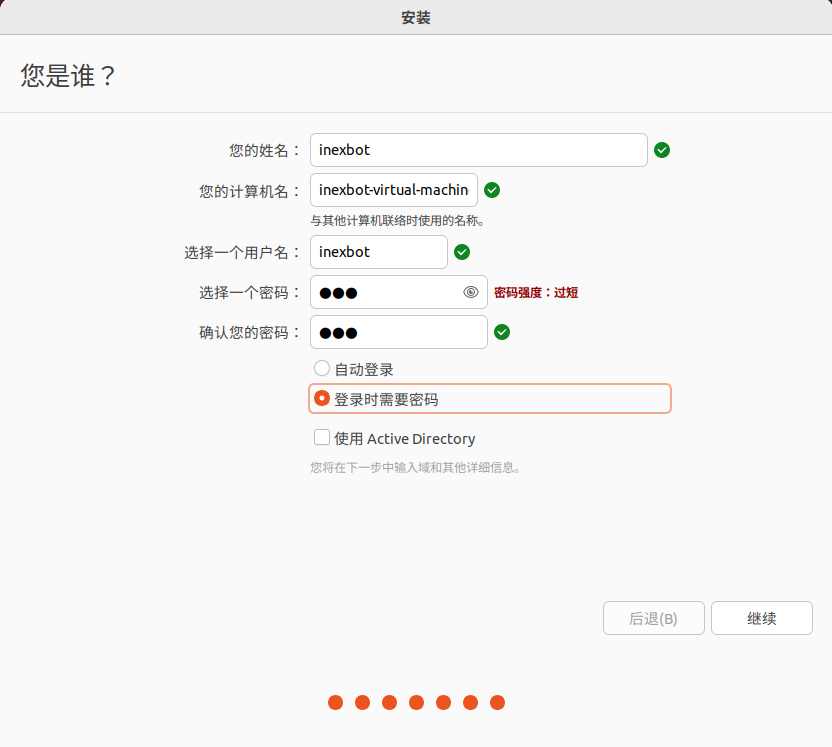
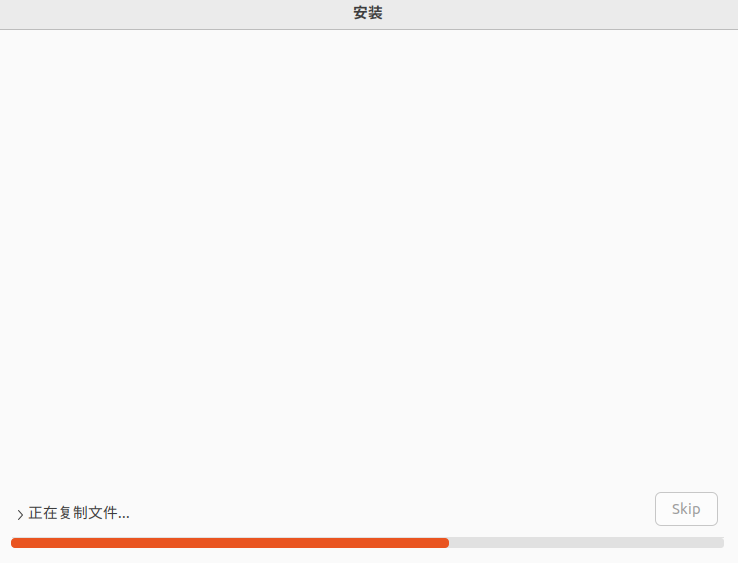
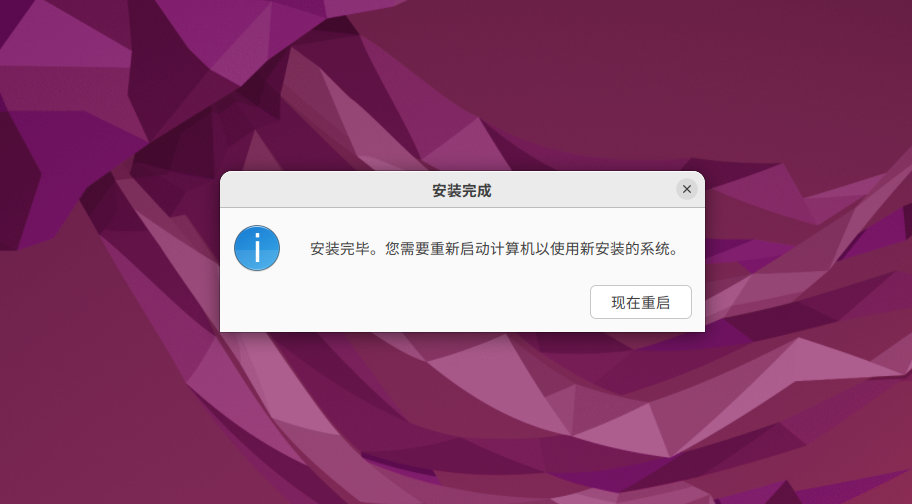
- Set your username and password, click Continue, and wait for the installation to complete.
Initial Configuration
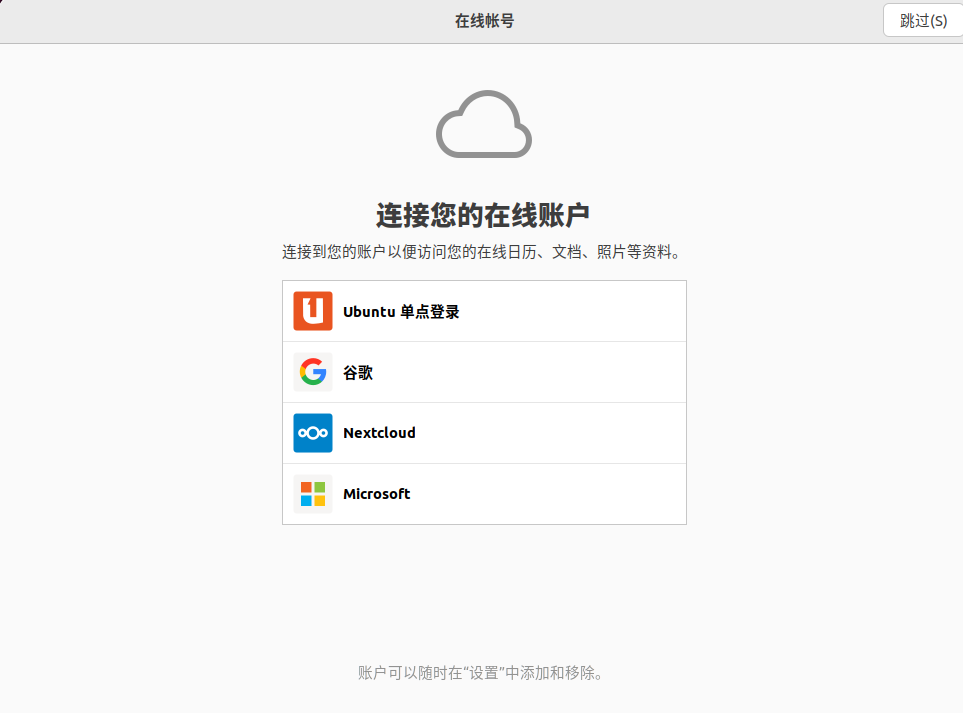
- After restarting, click Skip.
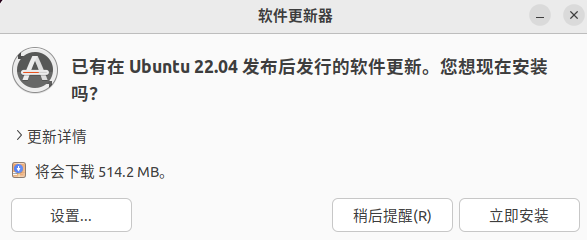
- Follow the prompts for the next few steps by clicking Forward, and finally click Done. If a prompt dialog appears, click Remind me later.